

Flipbook vs PDF: 6 Benefits for Your Online Catalog
Your catalog already has the product photography, specifications and layouts. A flipbook brings that work onto your website with page turning, product search, clickable links and reading statistics. Buyers can browse a collection, find a part number and move straight to an enquiry. Your team can update the catalog behind the same link. Here are six ways WebViewPDF helps turn an existing PDF into a catalog people can explore and act on.
From a finished PDF to an interactive catalog
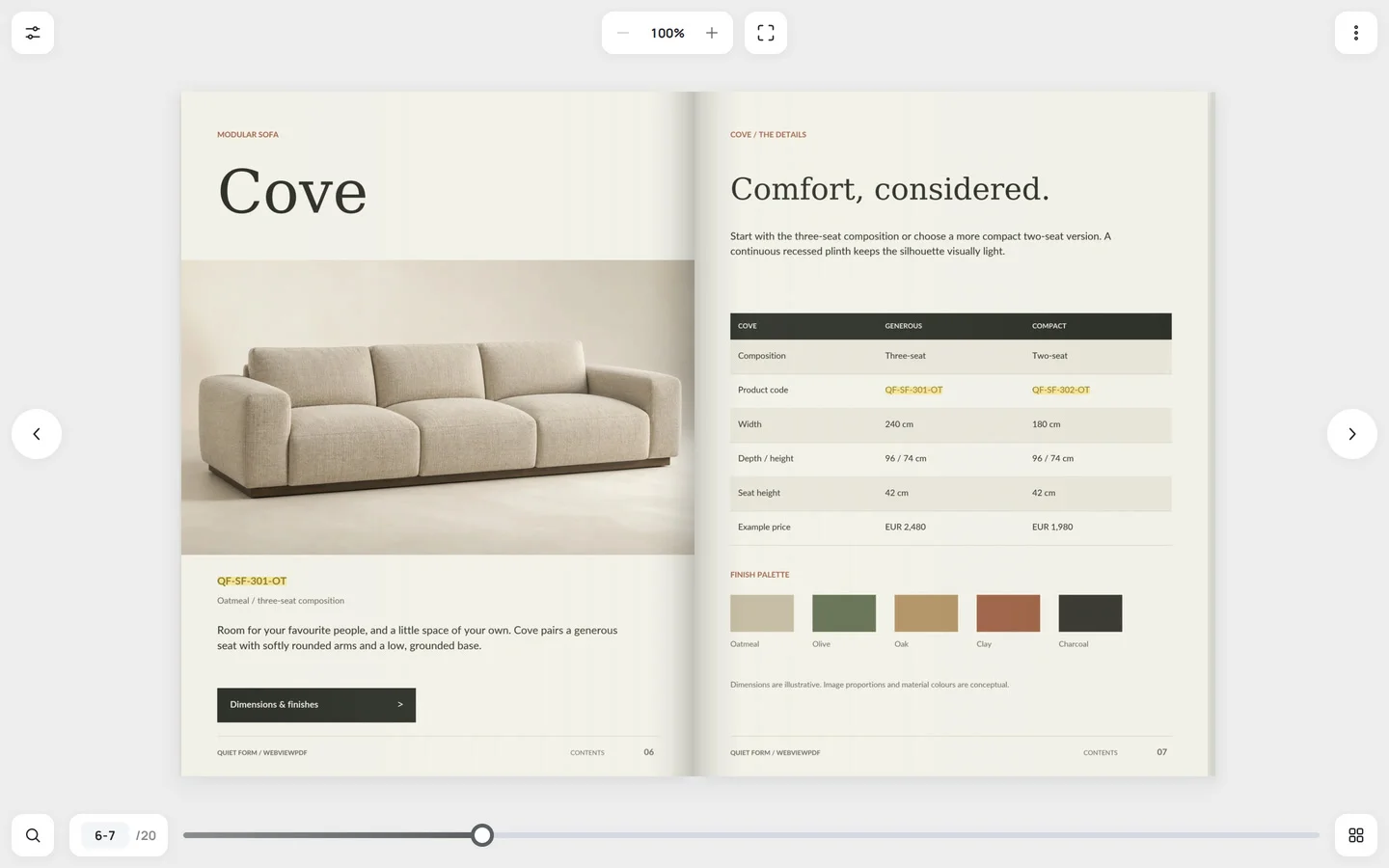
Picture a furniture buyer browsing your website. They open the catalog, see a two-page collection spread, search for a sofa code and follow a link to its product page. The catalog sits alongside your introduction, delivery information and quote form.
That is the publishing experience a flipbook adds to your PDF. You keep the document you already designed and give it a reading interface built for your website. An embedded PDF viewer is another way to display a document inline; WebViewPDF brings the viewer, navigation, page links, analytics and version management into one publishing workflow.
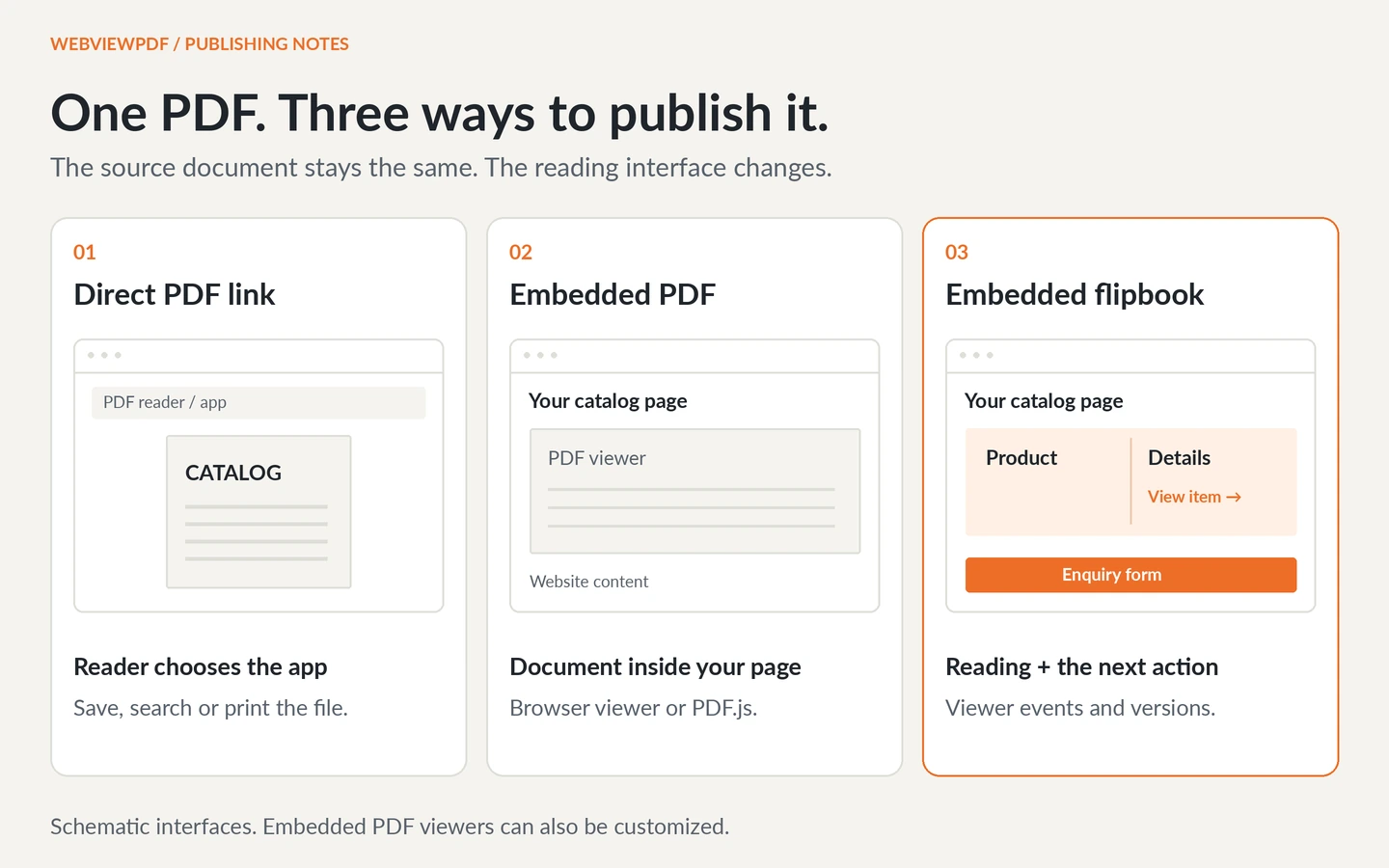
We used our Quiet Form demo catalog to check the examples below. It is a 20-page furniture catalog with fictional products, searchable product codes, a specification table and clickable links. Our October 23, 2026 measurements compare the same source PDF with its WebViewPDF edition.
1. Give your catalog a place on your website
An embedded flipbook makes the catalog part of your product page. Put a short introduction above it and a “Request a quote” form below it. Readers can browse the collection with your contact details and next step close at hand.
Page spreads preserve the relationship between facing pages: a room photograph on one side, finishes and specifications on the other. Single-page viewing and zoom give readers ways to explore the catalog on a smaller screen. For lookbooks, brochures and visual product ranges, this keeps the layout you invested in at the center of the experience.
WebViewPDF offers two embed options:
- Script: adjusts the embed height to the viewer's reported proportions, helping it fit your content column.
- Iframe: uses a height you choose and works with CMS setups that accept iframe embeds.
You can build the surrounding page around the reader's next step: request samples, contact sales or visit the store. The catalog becomes part of that journey.
2. Deliver a lighter reading edition of your PDF
WebViewPDF prepares page images and text on the server. Readers receive the viewer and prepared assets, with higher-resolution images available for zoom. Your original PDF remains the source for publication.
For our 20-page demo, the full ordinary-reading asset inventory was 2.88 MB, compared with 6.15 MB for the complete PDF response. That is 53.2% fewer transferred body bytes for this catalog's reading inventory, including all reading images, text, thumbnails and the viewer package.
| Measured resource group | Transferred body bytes |
|---|---|
| Complete original PDF response | 6,149,301 |
| All 20 reading images | 2,708,376 |
| Text, thumbnails, viewer package and viewer HTML | 171,192 |
| Complete reading inventory | 2,879,568 |
This gives the catalog a smaller representation for ordinary browsing while keeping a separate level of detail for closer inspection.
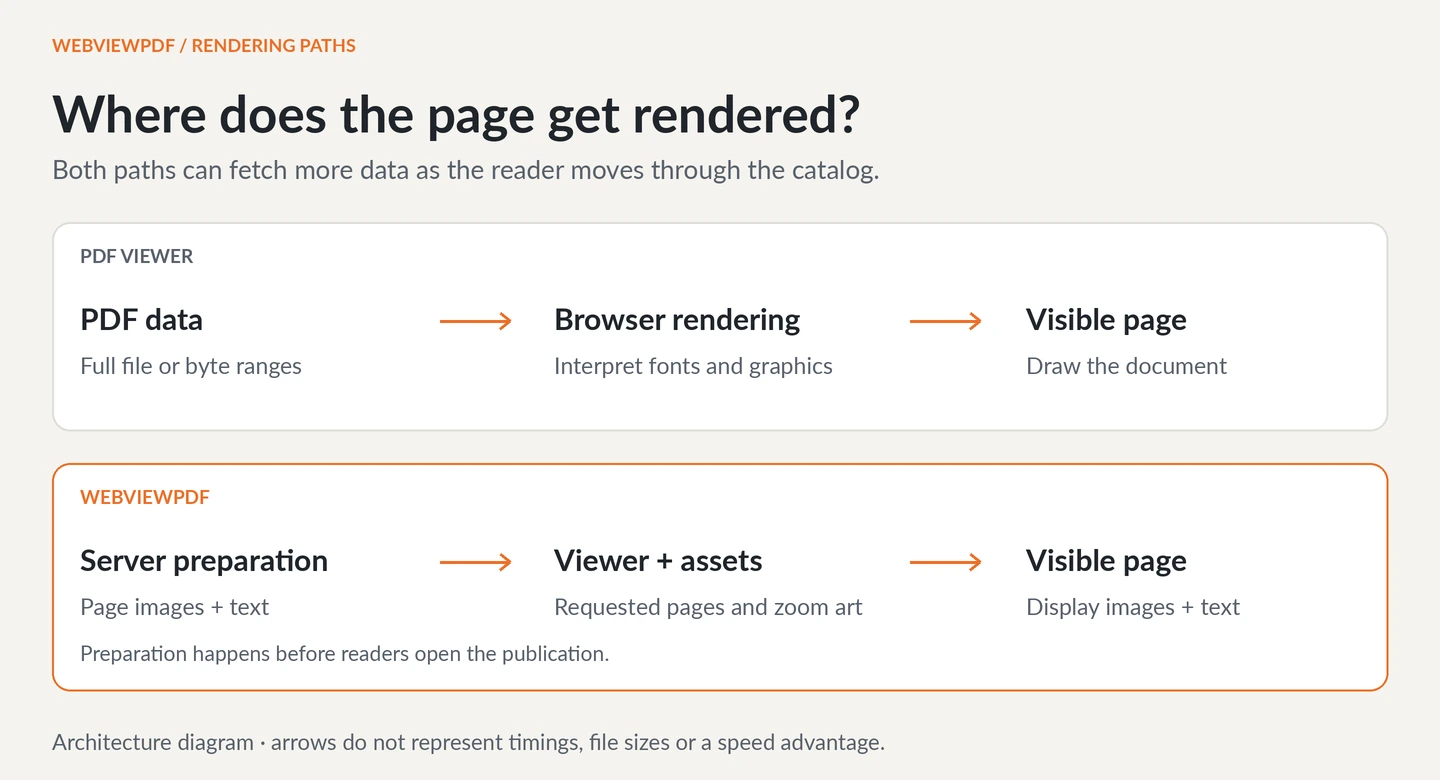
The figures are a compressed response-body inventory, not a first-screen load-time benchmark. The tested viewer prefetches reading images; zoom adds higher-resolution assets. Loading every zoom image brings this example's total to 9.90 MB. Results vary by catalog and reading behavior.
3. Help buyers find the right product
A buyer who knows a part number can go straight to the relevant pages. Someone exploring the range can use thumbnails or the table of contents. Those are three useful routes through the same catalog.
In WebViewPDF, text search covers the whole catalog, including pages the reader has not opened. Results show page numbers and snippets. Selecting a result opens the page and highlights the matching lines. Product codes support case-insensitive fragment matching, so readers can search with the part of a code they have.
We checked these searches against the demo:
| Search | Result in the demo |
|---|---|
QF-SF-301-OT | Finds the sofa code on pages 18, 7, 6 and 16 |
qf-sf | Finds the same pages using a lowercase fragment |
302-OT | Finds the matching code on pages 7 and 18 |
sofas | Finds relevant pages containing “sofa” through language-aware search |
Try qf-sf in the demo catalog, then open the page-7 result. The viewer opens the 6–7 spread and highlights the sofa codes in the specification table.
You can also create a Table of contents with named sections and destination pages. Labels such as “Sofas”, “Lighting” and “Materials” give readers a direct route to the collection they want.
For text preparation and search examples, see Searchable PDF Catalog: How to Let Buyers Find Any Product by Part Number. Use a PDF with live text, or run OCR on a scanned document before uploading it.
4. Connect product pages to enquiries and orders
A reader finds a sofa, checks the dimensions and wants to ask about a finish. A clickable area on that catalog page can take them directly to the relevant product or enquiry form.
WebViewPDF's page editor lets you add link areas over products, photographs or calls to action. Imported PDF links become hotspots that follow the page as the viewer resizes. Our source catalog already includes 50 internal links and three external links, giving the published edition useful destinations from the start.
Choose a destination that matches the reader's intent:
- Product page: show current availability, finishes and ordering options.
- Enquiry form: let the buyer ask about the item they just viewed.
- Collection page: connect an inspiring room layout to the products in that range.
For campaign attribution, separate WebViewPDF share links can append UTM parameters to outgoing HTTP or HTTPS page links. With analytics on the destination site, your team can follow the path from a shared catalog to the next web action. Plan availability and limits are on the pricing page.
5. See which sections and links attract interest
Viewer statistics give your team more detail about catalog use. WebViewPDF records viewer loads, page transitions, zooms, download-button actions, fullscreen actions and outgoing page-object link clicks. Statistics include views by page, while separate share links have their own analytics and outbound-link click table.
That lets you investigate useful sales and publishing questions:
- Which product sections receive page views?
- Which catalog links send readers to your website?
- How are recipients interacting with a particular share link?
Use those signals to decide which product ranges deserve a more visible link, which sections to review and where to focus follow-up analysis. Combine viewer activity with completed enquiry or order tracking on your website to assess the business result. Page views and clicks describe interactions; completed enquiries and orders show the outcome.
6. Keep one catalog link through every edition
A price changes after you have embedded the catalog on three pages and printed a QR code. In WebViewPDF, you can upload the corrected PDF as a new version of the existing flipbook. The publication link and embed code stay the same. Subsequent opens use the active edition.
You can review the new version before readers see it. Clear Activate the new version right away during upload, wait for processing, inspect the pages, then choose Activate this version when it is ready.
This workflow gives your team a stable destination for website embeds, emails and printed QR codes, with a separate review step for each edition. After replacing a file, check the new version's contents entries and page links so they point to the right products.
What a flipbook adds to your publishing workflow
| Your goal | How WebViewPDF helps |
|---|---|
| Present a visual collection | Page spreads, page turning and an embedded reader |
| Help buyers locate a product | Full-catalog text search, highlighted results and contents |
| Make the next step easy to find | Clickable product areas and a nearby enquiry form |
| Understand catalog use | Page-level views, interaction events and share-link analytics |
| Publish revised editions | Version review and activation behind the same link |
| Offer browsing and a take-away copy | An online reader alongside an original-PDF download |
Your PDF and flipbook can work together. The flipbook provides the online browsing experience; the original PDF gives readers a file to save or print.
Publish your first flipbook with WebViewPDF
Start with a catalog you already use in sales:
- Upload your PDF. Choose a file with live text so buyers can search for names and product codes.
- Review the pages. Open a spread, zoom into a specification and search for a known part number. Check the same tasks on a phone.
- Add navigation and product links. Open Files, select the processed version and open Table of contents. Use its Pages editor to add link areas.
- Embed it on your website. Open Integration, choose Script or Iframe under Embed code, and paste the generated code into your catalog page.
- Connect the next step. Place an enquiry form or store link near the viewer, then follow a product link through to its destination.
- Review reader activity. Use the flipbook's statistics to explore page views and link clicks as visitors use the catalog.
Give the host page a clear title, a useful introduction and links to relevant products. Keep an accessible HTML or properly prepared PDF alternative available for readers who need it. For dense print layouts, check the smallest text on a phone and provide a mobile edition or HTML specifications where useful.
Bring your own catalog. Upload a PDF to WebViewPDF, or explore the demo to try product search and page navigation first.
Turn your PDFs into interactive catalogs
WebViewPDF turns static PDF files into interactive flipbooks you can embed on any website. Perfect for catalogs, magazines, brochures and presentations — bring your documents to life in a couple of minutes.
Start your 14-day free trialFAQ
Why use a flipbook for a product catalog?
A flipbook combines the visual layout of your PDF with an online reading interface. WebViewPDF adds catalog search, clickable product areas, reading statistics and version management, helping readers move from browsing a collection to taking the next step.
Do I need to redesign my PDF?
You can start with your existing PDF. WebViewPDF prepares the reading assets from that file, and you can add contents entries and link areas in the publishing workflow. A source with live text enables product search; scanned pages need OCR before upload.
Can a flipbook use less data than a PDF?
Yes. In our 20-page demo, the complete ordinary-reading inventory was 2.88 MB versus 6.15 MB for the full PDF response: 53.2% fewer response-body bytes. Higher-resolution zoom assets add data. This is a result for one catalog's asset inventory, rather than a universal loading-speed claim.
Can readers save or print the catalog?
Yes. You can provide an original-PDF link alongside the viewer. WebViewPDF also offers a viewer download control, depending on your settings, so you can support online browsing and a downloadable copy.
Can I update the catalog without changing the embed?
Yes. Upload a new file version to the existing flipbook, review it and activate it. The publication link and embed code stay the same, and subsequent opens use the active version.
How can I use a flipbook to support sales?
Link catalog products to the relevant store pages or enquiry forms, keep a clear next step near the embedded viewer, and use page views and link clicks to understand interaction. Track completed enquiries or orders on your website to see how the catalog contributes to your sales process.
Turn your PDF into a catalog buyers can explore. Create your WebViewPDF account and upload your first document. See pricing for current plans and trial terms.
Measurements and product references
WebViewPDF makes the viewer used in this article. We checked the examples on October 23, 2026 using the Quiet Form demo and deployed viewer v1.2.15-2-g16b54e3. The downloaded PDF's SHA-256 matched our source file. Sizes use decimal MB and measured compressed response bodies.
The reading inventory includes all 20 reading images, text pages, thumbnails, the viewer package and viewer HTML. It excludes the surrounding website, embed-loader script, analytics, HTTP headers and transport framing. It measures asset sizes rather than browser rendering speed or sales performance.
- WebViewPDF features, public catalog demo and pricing.