

Searchable PDF Catalog: How to Let Buyers Find Any Product by Part Number
A buyer who already knows the part number doesn't want to page through a 300-page catalog. They type VT.123.N.04 and expect to land on the right page. A PDF catalog can do that only if two conditions hold. First, the file has to contain real text, not pictures of text. Second, the viewer your buyers open it in has to search the whole catalog, including partial part numbers. This guide shows how to check the first condition in two minutes and how to fix a scanned catalog with OCR. It also explains why part numbers are the first thing OCR gets wrong, and gives six searches that tell you whether a catalog viewer is good enough.
Checked and updated: October 12, 2026. Disclosure: WebViewPDF makes an online catalog viewer with part-number search. We describe our own tests step by step so you can repeat them. Every other claim links to its source.
Buyers who can't find a part number assume you don't sell it
Baymard Institute, an independent UX research firm, benchmarks e-commerce search on more than 170 sites and apps. Its 2026 update finds that "56% of sites fail to adequately support users' search needs." Exact searches for a model name or number are the easiest kind to support. Even so, Baymard's test participants "were quick to conclude that a site didn't carry the product if it failed to show up when they entered a specific model name or number".

Baymard studies online stores, not PDF catalogs. B2B sellers describe the same behavior for their buyers, and the next two sources are industry recommendations rather than studies. DistyMan, an agency that builds distributor websites, writes: "Buyers frequently know exactly what they need and may enter a manufacturer part number, partial part number, keyword, specification or product family directly into the search box." Coveo, a search vendor, lists "partial part # match" among the capabilities of its B2B search product.
Here is what that looks like on McMaster-Carr, a large industrial supplier. Typing the first six characters of a part number already lists the full part numbers:
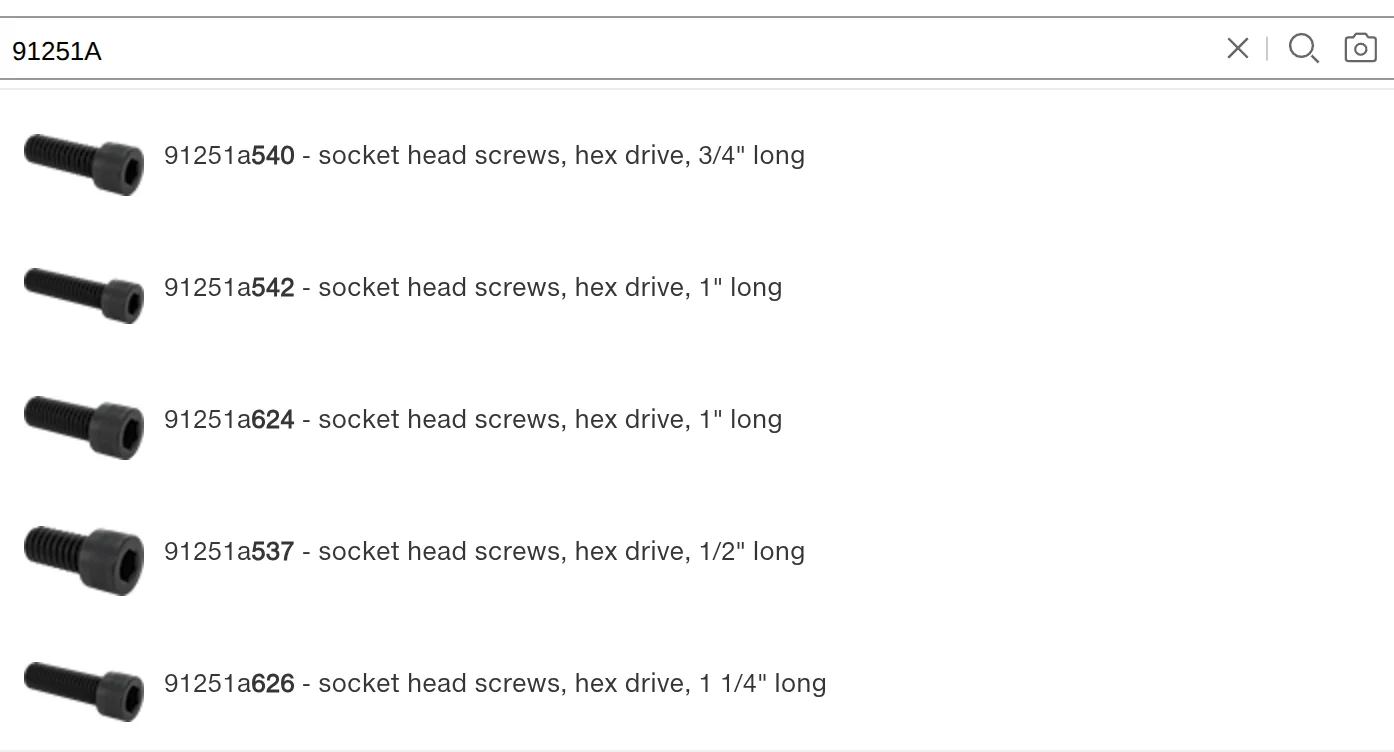
Buyers also want to do this alone. Gartner surveyed 646 B2B buyers from August through September 2025, and "67% of B2B buyers state that they prefer a rep‑free experience" (Gartner press release, March 9, 2026). If your catalog is a PDF, the part numbers are already in it. What matters is whether a buyer can reach them with a single search, without calling you.
Step 1. Check whether your PDF has a text layer
Each page of a PDF holds either text drawn with fonts or an image of text. Search, copy and paste, and screen readers work only with the first kind. Here are three checks, from the quickest to the most reliable:
- Ctrl+F (Cmd+F on a Mac). Open the PDF and search for a part number you can see on a page. If the viewer finds and highlights it, that page has text.
- Select a line. If dragging the mouse selects the whole page as a picture, the page is an image.
- Command line (the free poppler-utils package).
pdffontslists the fonts used for text, andpdftotextprints the text itself.
We built a one-page test catalog with six products and part numbers such as VT.123.N.04 and SJ-001-XL. We exported it to PDF from a browser, then saved the same page as an image-only PDF to simulate a scan:
$ pdffonts text.pdf
name                                 type              encoding         emb sub uni object ID
------------------------------------ ----------------- ---------------- --- --- --- ---------
AAAAAA+LiberationSans-Bold           CID TrueType      Identity-H       yes yes yes      4  0
BAAAAA+LiberationSans                CID TrueType      Identity-H       yes yes yes      5  0

$ pdffonts scan-150.pdf
name                                 type              encoding         emb sub uni object ID
------------------------------------ ----------------- ---------------- --- --- --- ---------

$ pdftotext scan-150.pdf - | wc -c
1
The scan has no fonts, and pdftotext returns a single character, which is the page break. pdffonts reports on the whole file. If a catalog mixes designed pages with scanned inserts, check page ranges with -f and -l, or search for one part number from each section.
A catalog that started out digital can still lose its text in three common ways:
- Text converted to outlines. Adobe says InDesign's Create Outlines command transforms "text characters into compound paths", and "After conversion, you can't edit the text or adjust typography settings" (Adobe InDesign help, updated Jun 2, 2026). Paths are shapes, so nothing searchable remains. Some print shops ask for outlined files, so export the web version separately with live text.
- Tables pasted as images. A price table copied from an ERP or a spreadsheet as a screenshot looks exactly like text but contains none.
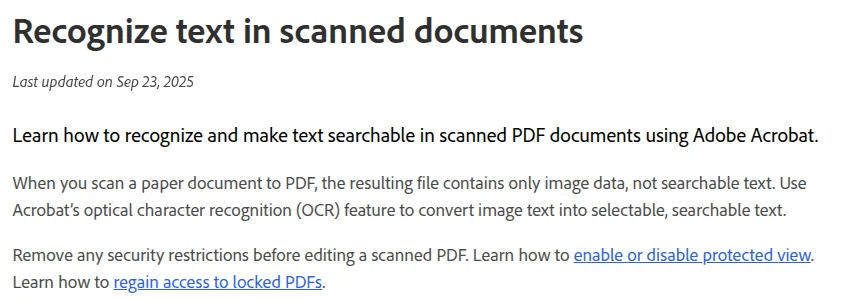
- Scans. Adobe: "When you scan a paper document to PDF, the resulting file contains only image data, not searchable text."
Step 2. Scanned catalog? Add OCR, then search for your part numbers
OCR (optical character recognition) reads the page image and places an invisible text layer on top of it. The page looks the same, and search starts to work. There are two common ways to do it:
- Adobe Acrobat. Adobe's help article sends you to All tools > Scan & OCR. It doesn't say which Acrobat plans include the feature.
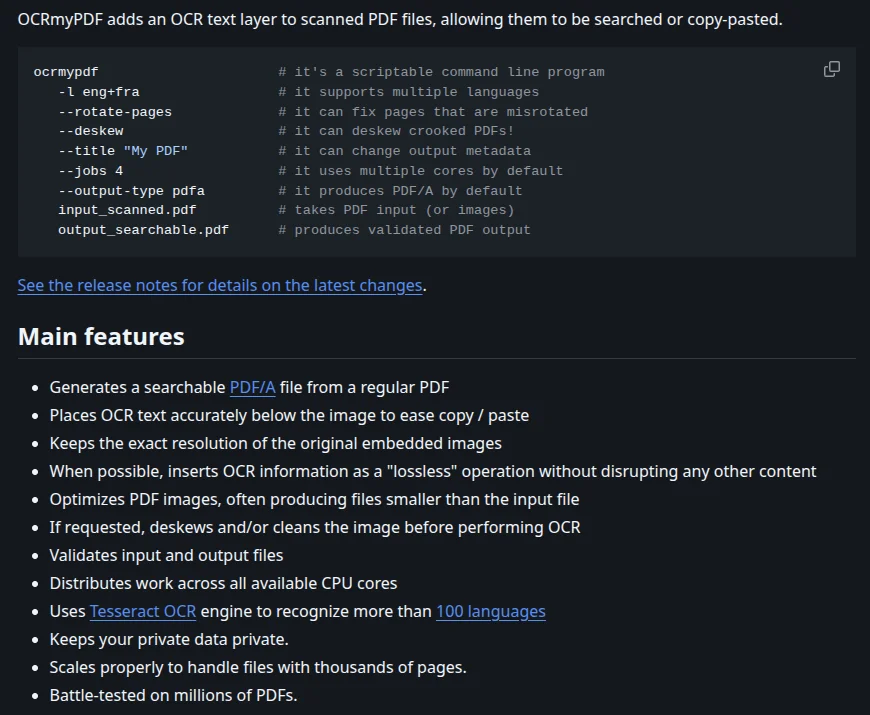
- OCRmyPDF, a free, open-source tool under the MPL-2.0 license. Its README says: "OCRmyPDF adds an OCR text layer to scanned PDF files, allowing them to be searched or copy-pasted." It runs on the Tesseract engine and supports "more than 100 languages". A basic run looks like this:
ocrmypdf -l eng scan.pdf searchable.pdf.
OCR gives you a text layer, but that text can be wrong. To see how wrong, we rendered our test page at 150, 100 and 72 dpi and saved each version as an image-only PDF. Then we ran Tesseract 5.5.0 with the English model and searched the OCR text for each of the six part numbers, ignoring case.
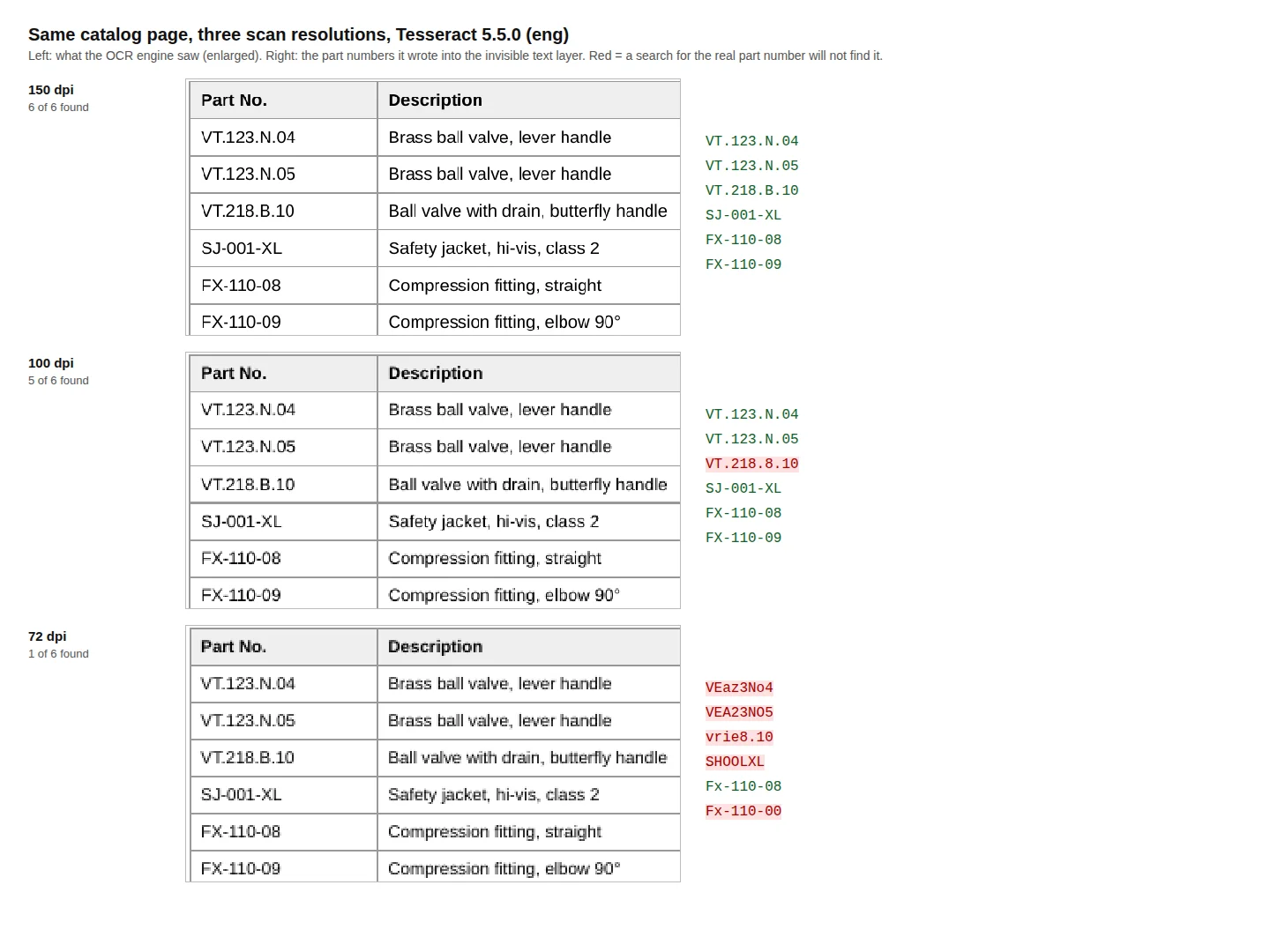
eng model).| Scan resolution | Part numbers found (of 6) | What OCR wrote instead |
|---|---|---|
| 150 dpi | 6 | — |
| 100 dpi | 5 | VT.218.B.10 → VT.218.8.10; also 1/2" → ue", 3/4" → 314" |
| 72 dpi | 1 | VT.123.N.04 → VEaz3No4, SJ-001-XL → SHOOLXL, FX-110-09 → Fx-110-00 |
At every resolution, 8 mm came out as 8mm, so a search for "8 mm" misses those rows. At 72 dpi, every part number in the crop is still easy for a person to read.
Our page was a clean digital render, with no skew, noise or paper texture. A real scan will do worse than this. Tesseract's own documentation says it "works best on images which have a DPI of at least 300 dpi" (Tesseract docs, “Improving the quality of the output”).
For a catalog, that means:
- Scan or rasterize at 300 dpi or more.
- OCR mistakes hit the characters part numbers are made of: B and 8, 0 and O, 1 and l. The page still looks perfect, so the only way to catch the mistakes is to search. Take 10–20 part numbers from different sections and search for each one.
- If you still have the original layout files, export a new PDF instead of running OCR. Real text beats the best OCR.
Why part numbers break ordinary search
Full-text search is built for words. The engine splits text into tokens and reduces words to stems, so "jackets" matches "jacket". Part numbers aren't words, and tokenizers handle them in ways you might not expect.
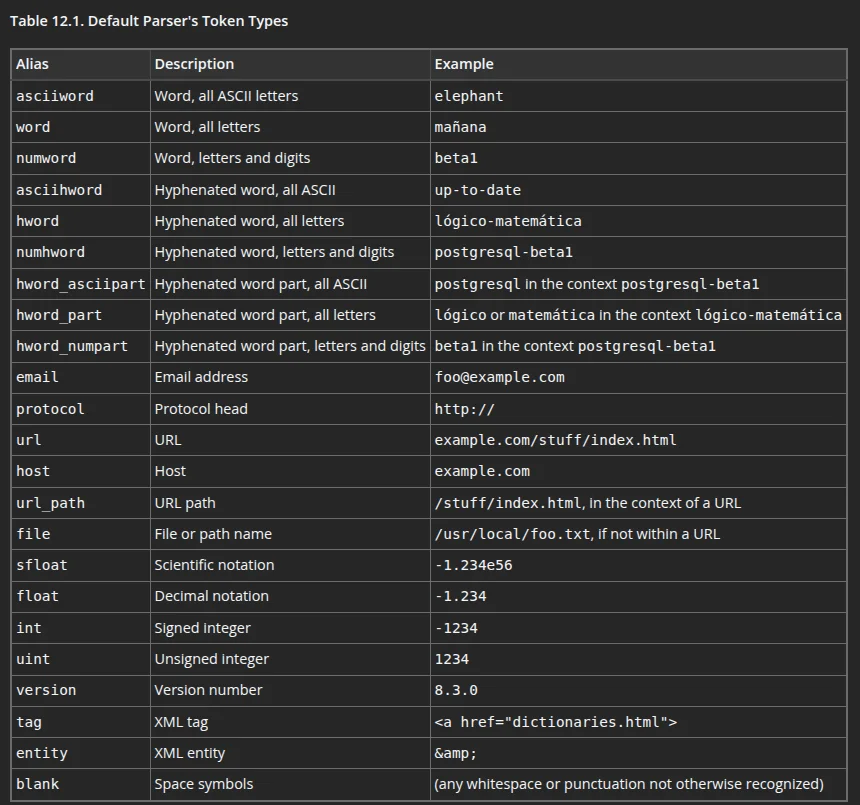
PostgreSQL makes a good example because its documentation lists the parser's 23 token types. We ran our test part numbers through ts_debug on PostgreSQL 18.3:
| Part number | How the default parser splits it |
|---|---|
VT.123.N.04 | one token of type file ("File or path name") |
SJ-001-XL | SJ (asciiword), -001 (int, "Signed integer"), XL (asciiword) |
FX-110-08 | FX (asciiword), -110 (int), -08 (int) |
Here is what follows from that:
- A plain word search for the series
VT.123doesn't findVT.123.N.04, because the whole part number is a single token andVT.123is a different one. In our test,plainto_tsquery('english', 'VT.123')returned no match. Prefix syntax (VT.123:*) does match, but buyers don't type that. - In
SJ-001-XL, the parser read the hyphen as a minus sign on the number-001. - A case-insensitive substring search,
ILIKE '%vt.123%', matches. It doesn't have to be slow on a large catalog. PostgreSQL's pg_trgm indexes "support trigram-based index searches for LIKE, ILIKE, ~, ~* and = queries", and "the search string need not be left-anchored" (pg_trgm documentation).
Other search engines tokenize differently, but you check them the same way: does searching for the first characters of a part number find the full part number?
Catalog production adds two more traps:
- Lookalike hyphens. Layout programs can insert a non-breaking hyphen that looks exactly like a normal one. The buyer types
-, the PDF contains a different character, and the exact match fails. We ran into this with catalogs exported from InDesign, so we now treat every hyphen variant as the same character, in both the catalog text and the query. - Letter case. A catalog prints
QF-SF-301-OTand a buyer typesqf-sf. Part-number search should ignore case.
Six searches that test any catalog viewer
Before you choose where to publish, upload one real catalog and run these six searches:
- A full part number. It should open the right page.
- The first 3–4 characters of a part number (a series prefix). You should get every product in the series.
- The same part number in lowercase.
- A product name in the singular when the catalog uses the plural, such as "safety jacket" against "Safety jackets".
- A word that appears only on the last pages, searched before you open them. Browser Ctrl+F inside a page-by-page viewer only sees pages that are already loaded, so the viewer's own search has to cover the whole file.
- All of the above on a phone.
Where your buyers will search: three options
Send the PDF or let buyers download it. Any desktop PDF reader searches the whole file, and there's nothing to set up. The downsides: the buyer downloads the entire catalog before the first search, you can't see what they opened or searched for, and every price update puts another version into circulation.
A flipbook or online catalog platform. Most have text search, so read the details. Here is what two market leaders say in their help centers:
- FlippingBook: "Let viewers search through your flipbook by entering keywords into our flexible search tool located in the right corner of the top panel." The article doesn't mention scans, partial matches or languages. Plans start at €19/mo (Lite, €225 billed annually). The pricing page has "Text search" and "Search query analytics" rows, but its text doesn't show which plans include them.
- Flipsnack: "Search inside your flipbook finds a word across the pages and lists the pages it is on. Off by default." The help article lists "Plan: Starter or above" as the requirement for the Controls panel. Starter costs $16/mo billed annually ($192 a year). Search is off by default, so remember to turn it on.

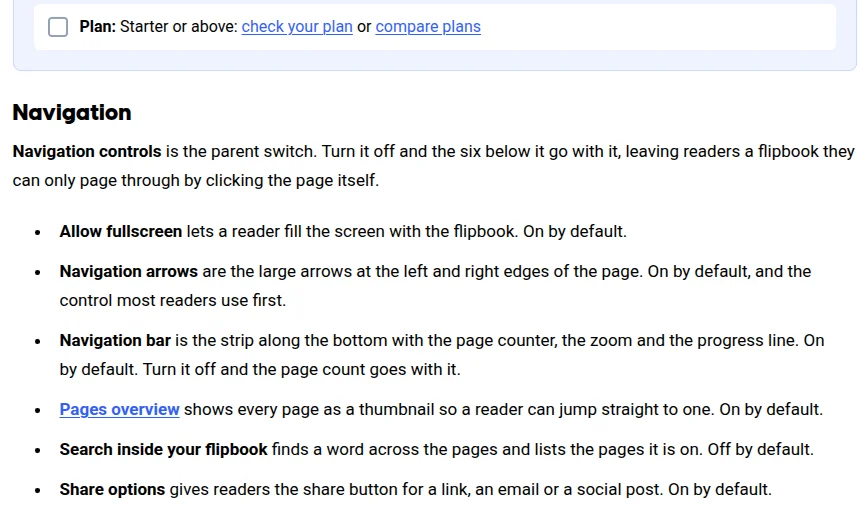
Neither help article says how part numbers with dots or hyphens are matched, so run the six searches above. We didn't find help articles about in-document text search for Issuu or Heyzine as of October 8, 2026.
WebViewPDF. We describe our own viewer in the next section, including its limits.
How search works in a WebViewPDF catalog
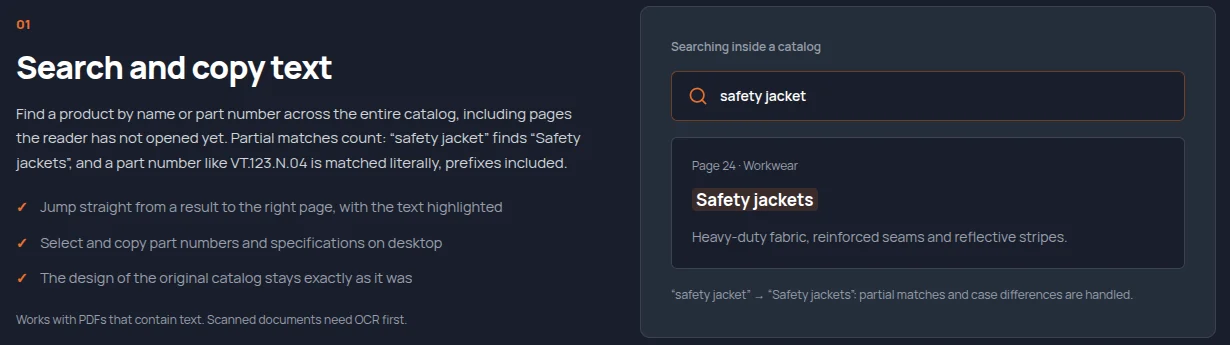
- Whole catalog. The search button sits in the player's bottom bar, and it searches every page, including pages the reader hasn't opened yet. Results come back as a list of pages with snippets. Clicking a result opens that page and highlights the matching lines.
- Names and part numbers. Product names match in any word form: "safety jacket" finds "Safety jackets". Word forms follow the catalog's language, which we detect from the text when you upload the PDF. Supported languages are English, German, French, Spanish, Italian, Portuguese, Dutch, Swedish, Danish, Norwegian, Finnish, Hungarian, Russian and Turkish. In a German catalog, "Schutzjacken" finds "Schutzjacke". Part numbers match literally, ignoring case, and any fragment counts, including a series prefix. Literal matches rank above word-form matches.
- Hyphens. All hyphen variants count as the same character, in both the catalog text and the query.
- Copying. On desktop, readers can select and copy part numbers and specifications into their order forms.
Here is how it behaves on a catalog. We sent these queries to Quiet Form, the 20-page furniture catalog we made for our public demo, on October 12, 2026, using the same search endpoint the player calls. The products and part numbers in it are fictional.
| Query | Pages found | Top snippet (match in brackets) |
|---|---|---|
sofa | 4 | "…Cove three-seat [sofa] Oatmeal QF-SF-301-OT…" |
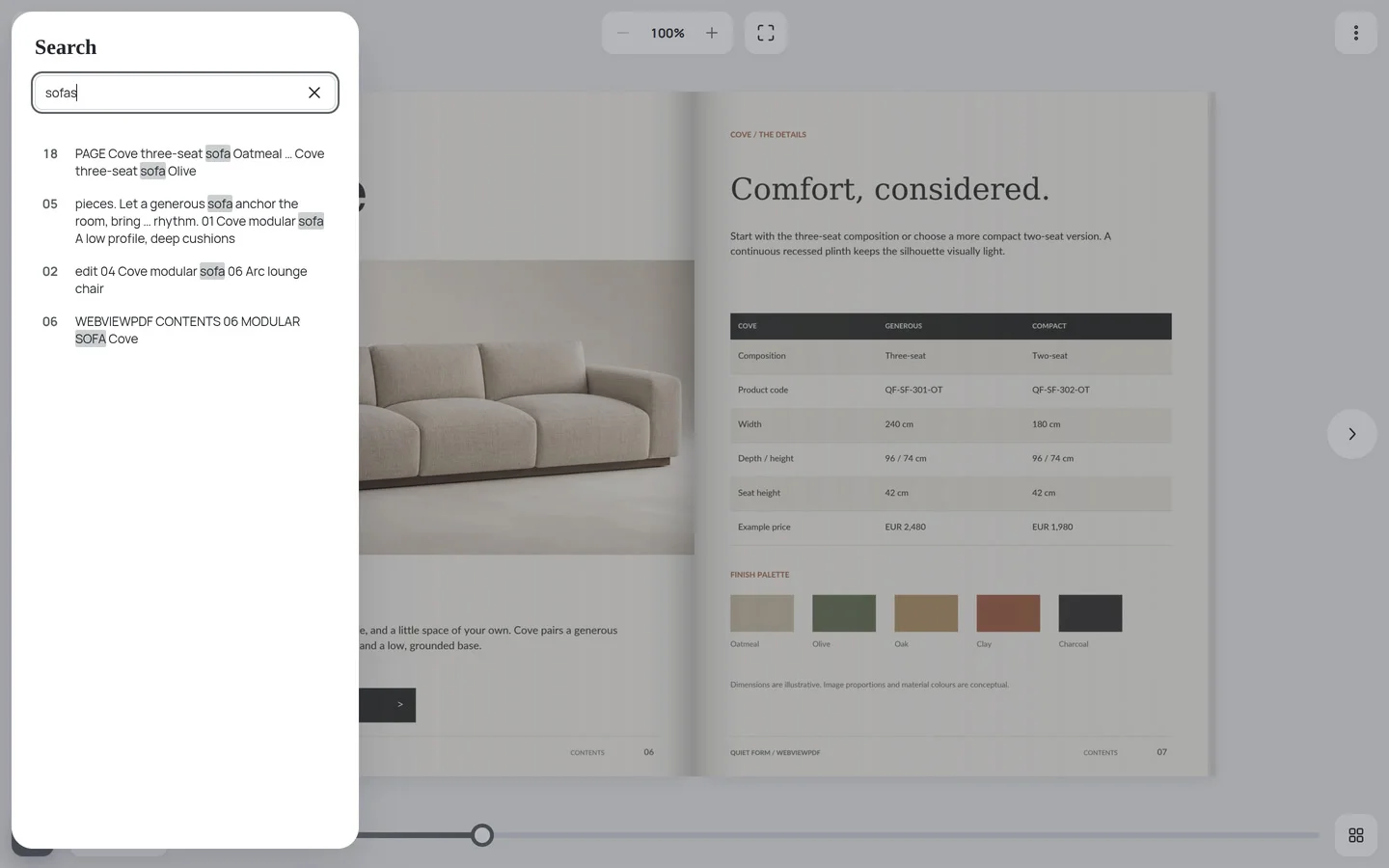
sofas | 4 | "…Cove three-seat [sofa] Oatmeal…": the plural finds the singular |
QF-SF-301-OT | 4 | "…Cove three-seat sofa Oatmeal [QF-SF-301-OT] 2,480…" |
qf-sf | 4 | "…Product code [QF-SF]-301-OT QF-SF-302-OT…": a lowercase series prefix finds every sofa code |
302-OT | 2 | "…Product code QF-SF-301-OT QF-SF-[302-OT]…": a fragment from the middle of a part number matches too |
lounge chair | 4 | "…Arc [lounge chair] Olive / oak QF-CH-201-OL…" |
A lowercase series prefix, qf-sf, returns four pages. Each result shows the page number and the line where the match was found:
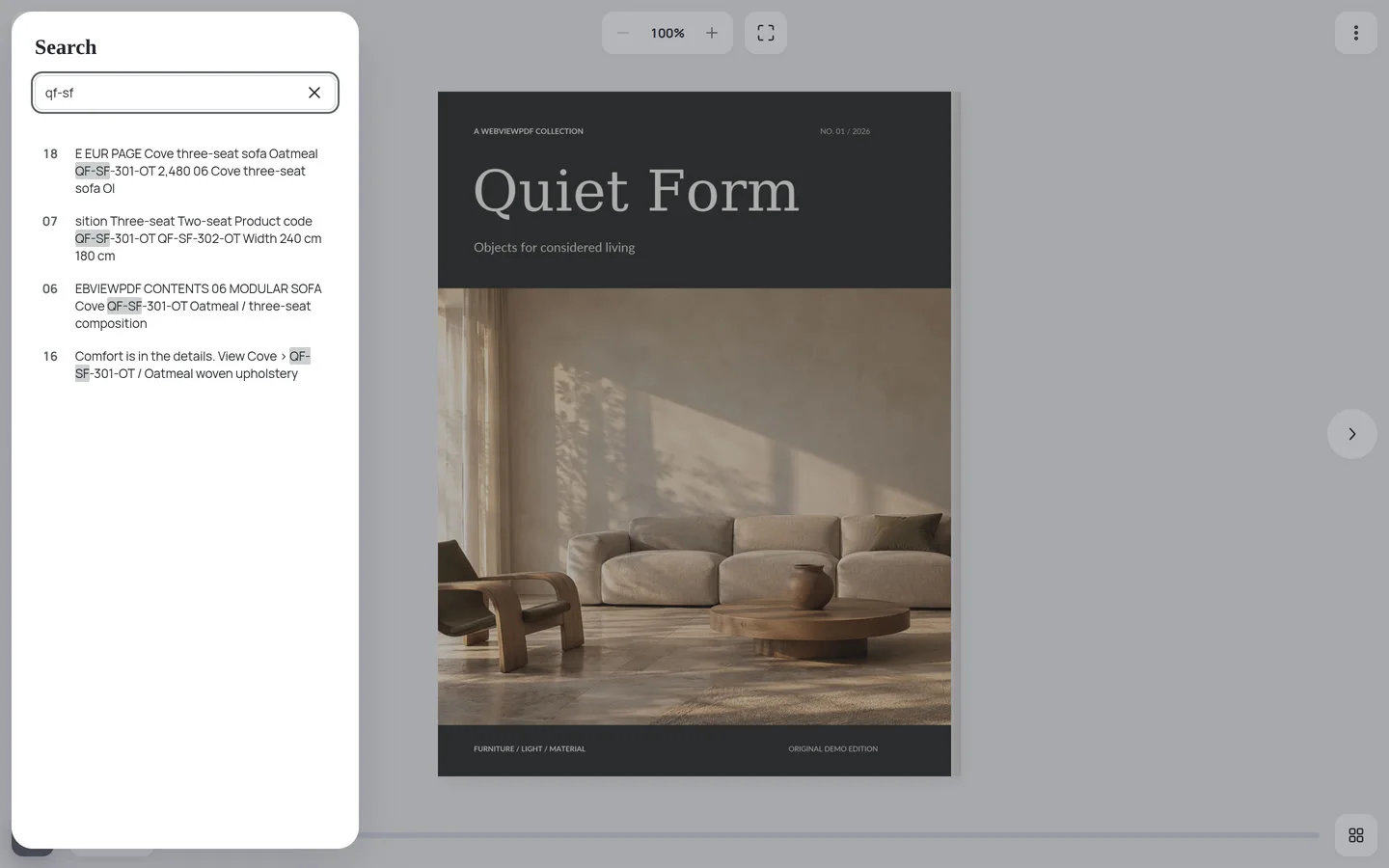
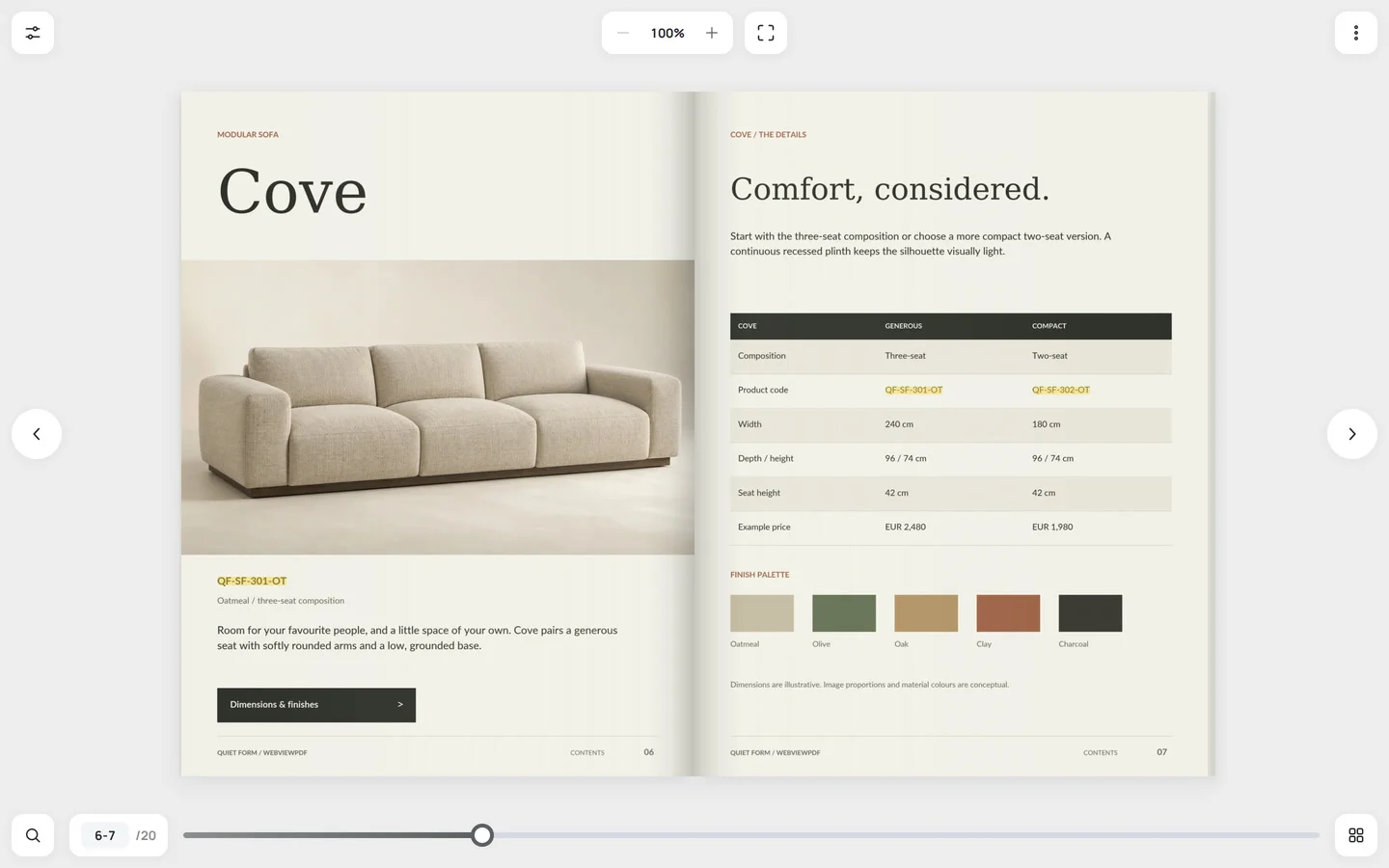
A click on the page 07 result opens the Cove spread. Both sofa codes in the specification table, QF-SF-301-OT and QF-SF-302-OT, are highlighted, and so is the code under the photo on page 06. The other rows aren't. In this screenshot the search panel is closed:
Searching by name works the same way, in any word form. "sofas" finds the four pages that say "sofa":
Search comes with every plan: Start, Business and Team. It isn't an add-on or a feature of the top tier, and it's switched on by default. The free trial lasts 14 days and doesn't require a card. Plans and prices are on the pricing page.
What our search doesn't do
- No text, no search. We don't run OCR for you. The features page says: "Works with PDFs that contain text. Scanned documents need OCR first." Use Step 2 above.
- Results are pages, not products. A two-word query can match two neighboring products on the same page. The highlight shows which lines matched.
- Word forms aren't synonyms or typos. "jacket" finds "jackets" but not "coat", and a mistyped part number finds nothing.
- One language per catalog. We detect it automatically, and you can't override it yet. In a bilingual catalog, word forms work only for the main language, and the second language matches exact words and fragments. Languages outside the list above, such as Polish or Czech, also get exact matches only.
- At most 50 pages per query. A broad word like "jacket" in a large catalog returns the 50 best pages, literal matches first.
- Some technical drawings aren't searchable. On pages where every character is a separate object, as in dense CAD drawings and maps, text extraction would take too long. Those pages get no text layer and no search. Ordinary catalog pages, including dense price tables, stay well below that limit.
- No search in offline exports. The ZIP export for offline use has no search.
- Lookalike letters stay different. The Latin A and the Cyrillic А are different characters, and there's no keyboard-layout correction.
- No search analytics yet. We don't report what readers search for. FlippingBook lists "Search query analytics" on its pricing page.
- Viewer search isn't Google search. Search inside the viewer helps people who are already on your page. Google says it can index PDFs: "Adobe Portable Document Format (.pdf)" is on its list of indexable file types (updated 2026-02-03). A catalog shown in a viewer is a different case. Our viewer shows pages as images with a separately loaded text layer, so we don't promise that Google will index the catalog text through it. If organic search traffic for part numbers matters to you, also keep HTML product pages or a crawlable PDF on your site.
Checklist before you publish
- Export the web version from the layout files with live text, and don't outline product tables.
- Make sure part numbers and prices are text, not images.
- Confirm that
pdffontslists fonts and that Ctrl+F finds a part number from every section. - For scans: scan at 300 dpi or more, run OCR, then search for 10–20 known part numbers.
- Run the six searches in your viewer, on desktop and on a phone.
- If your viewer ships with search switched off, turn it on (Flipsnack's is off by default).
Turn your PDFs into interactive catalogs
WebViewPDF turns static PDF files into interactive flipbooks you can embed on any website. Perfect for catalogs, magazines, brochures and presentations — bring your documents to life in a couple of minutes.
Start your 14-day free trialFAQ
How do I make a scanned PDF catalog searchable for free?
Run OCRmyPDF, which uses the Tesseract engine: ocrmypdf -l eng scan.pdf searchable.pdf. Then search for known part numbers to catch recognition errors.
Why doesn't Ctrl+F find a part number I can see on the page?
There are four usual causes: the page is an image, the text was converted to outlines, OCR misread a character, or the PDF uses a lookalike character such as a non-breaking hyphen.
What resolution should I scan at?
Tesseract's documentation recommends at least 300 dpi. In our test, 100 dpi was already enough to lose one of six part numbers.
Which WebViewPDF plans include catalog search?
All of them: Start, Business and Team. Search by product name and part number is on by default for every PDF that has a text layer.
Does catalog search work in languages other than English?
Yes. WebViewPDF detects the catalog's language when you upload it and matches word forms in 14 languages, including German, French, Spanish and Italian. Part numbers match literally in any language.
Will a searchable flipbook help my Google rankings?
Not by itself. In-catalog search serves readers who are already on your page. For Google, keep HTML product pages or a crawlable PDF on your site.
Try it on your own catalog. Upload a PDF to WebViewPDF, open it, and run the six searches above. The trial lasts 14 days and doesn't require a credit card.
Sources
All accessed on October 8, 2026, unless a different date is given.
Independent research and analysts:
- Baymard Institute, “Ecommerce Search UX 2026: 8 Search ‘Query Types’ UX Best Practices (56% of Sites Have Issues)”, updated Apr 29, 2026.
- Gartner, “Gartner Sales Survey Finds 67% of B2B Buyers Prefer a Rep-Free Experience”, March 9, 2026.
Industry recommendations (agencies and vendors):
- DistyMan, “B2B Distributor | Manufacturer Websites - Best Practices”, Aug 18, 2026.
- Coveo, B2B ecommerce search platform.
- McMaster-Carr, site search, our screenshot, October 12, 2026.
Official documentation:
- Adobe, “Recognize text in scanned documents”, updated Sep 23, 2025.
- Adobe, “Create paths from text outlines” (InDesign), updated Jun 2, 2026.
- OCRmyPDF, README.
- Tesseract, “Improving the quality of the output”.
- PostgreSQL 18 documentation, “12.5. Parsers”.
- PostgreSQL 18 documentation, “F.35. pg_trgm”.
- Google Search Central, “File Types Indexable by Google”, updated 2026-02-03.
Vendors compared:
- FlippingBook help, “Customize controls”; pricing.
- Flipsnack help, “The Controls panel: what your flipbook readers can do”, October 7, 2026; pricing.
- WebViewPDF features and pricing.
Our own tests: the OCR test (Tesseract 5.5.0, eng model, page rendered at 150/100/72 dpi) and the tokenizer test (ts_debug on PostgreSQL 18.3), October 8, 2026; the queries against the Quiet Form demo catalog, October 12, 2026.