

How to Embed a PDF on Your Website: A Practical Guide for Desktop and Mobile
Put your catalog on a page where buyers can browse it, find a product and contact you. You can link to the PDF, display it in a browser PDF viewer, or embed a flipbook. This guide shows when to use each option, gives you copyable HTML, and explains what to check on a phone before you publish.
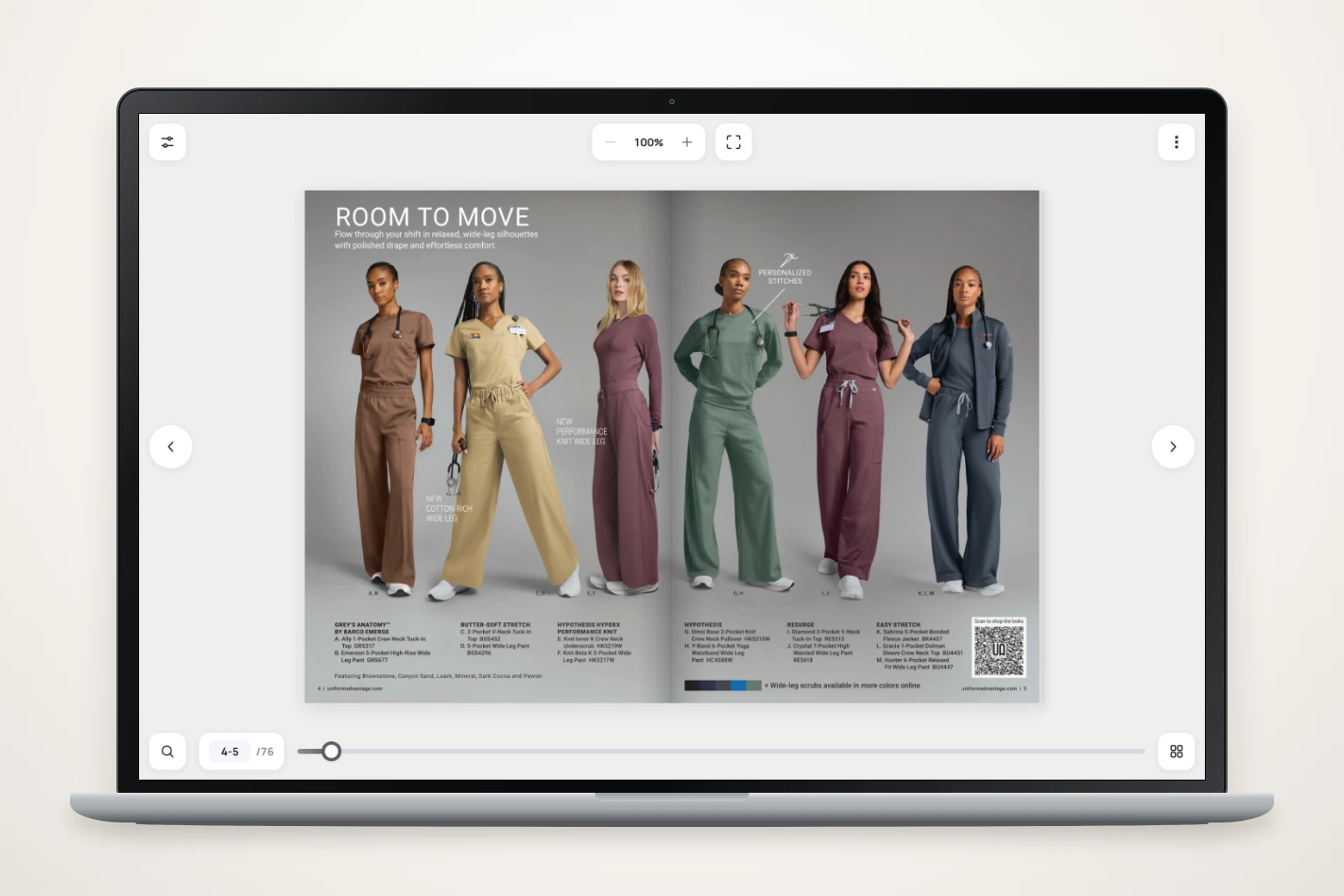
A useful catalog page has more than a document in the middle. Give visitors a short explanation above the reader and a next step below it: request samples, ask for a quote, or contact your showroom. Keep a separate link for opening the document outside the embed.
For the examples, we use our Quiet Form furniture catalog. It is a fictional collection used to demonstrate WebViewPDF. You can open the demo now, then repeat the workflow with your own PDF.
On this page
- Choose how to display the PDF
- Add a direct PDF link
- Embed the PDF in a browser viewer
- Embed a WebViewPDF flipbook
- Add it to WordPress or another CMS
- Check desktop and mobile reading
- Update the catalog
- Troubleshooting and FAQ
Choose how to display the PDF on your website
Start with the action your visitor needs to take. Someone collecting technical documents may want a file. Someone browsing furniture may want to explore the collection while staying near your enquiry form.
| Method | What visitors get | When to choose it | What you manage |
|---|---|---|---|
| Direct PDF link | A link that opens or downloads the file, depending on the browser and response headers | Downloads, specifications, a simple fallback | File hosting and the link destination |
| Embedded browser PDF viewer | The PDF inside a block on your page, where the browser supports it | A straightforward inline document | File hosting, block dimensions and browser checks |
| Embedded flipbook | A hosted reader with page turning, navigation and configured catalog tools | Visual catalogs, brochures and lookbooks | The publication, viewer settings and embed placement |
You can combine these. An embedded catalog can sit above an “Open catalog” link and a PDF download. Choose the main reader around the browsing experience, then keep another way to reach the document.
This guide focuses on installation and reading layout. For a closer look at search, analytics and version management, see Flipbook vs PDF: 6 Benefits for Your Online Catalog.
Option 1: Add a direct PDF link
Upload the PDF to your website's media library or file storage, copy its public URL, and use it as a link destination. Give the link a name that tells people what they will open.
<a href="/files/furniture-catalog.pdf">
  Open the furniture catalog (PDF)
</a>
Replace /files/furniture-catalog.pdf with the URL of your uploaded file. The example path is a placeholder, not a file supplied by WebViewPDF. Open it while signed out to check that visitors can reach it.
Keep the link in the same tab unless you have a reason to open another one. If you do use target="_blank", tell readers it opens a new tab and add rel="noopener".
The server's response affects what happens next. A file served as an attachment may download instead of appearing in a viewer. MDN explains this distinction in its Content-Disposition reference. Check the actual URL rather than assuming that a .pdf ending guarantees inline reading.
For a one-page specification sheet, the link may be all you need. For a product collection, an inline reader lets you put the catalog next to the information and actions that support it.
Option 2: Embed a PDF in the browser's viewer
If your PDF URL supports inline viewing, an iframe is a small starting point. Set a useful height as well as a fluid width, and put a separate link outside it.
<iframe
  src="/files/furniture-catalog.pdf"
  title="Furniture catalog PDF"
  width="100%"
  height="720"
  style="display:block;border:0;max-width:100%"
  loading="lazy">
</iframe>
<p>
  <a href="/files/furniture-catalog.pdf">Open the PDF separately</a>
</p>
Here too, replace the example file path. The iframe creates a nested document; the browser decides how to handle the PDF inside it. MDN documents the iframe's title, dimensions and loading attributes. The title names the frame for assistive technology; it does not make the PDF's contents accessible by itself.
You can also use an <object type="application/pdf"> with fallback content, as shown in the MDN object reference. A visible link outside the viewer is still useful because readers can choose it even when the embedded document loads.
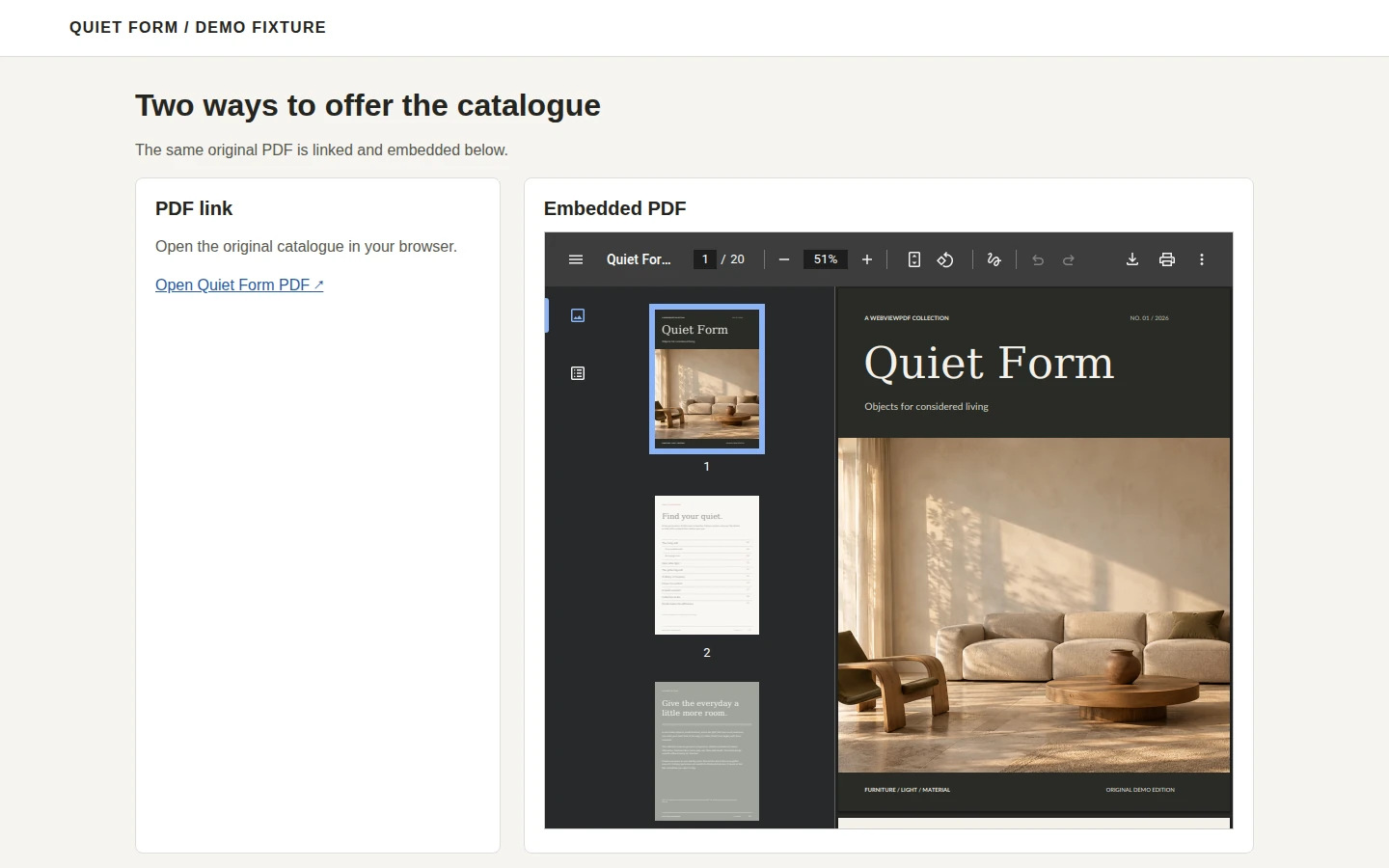
Width and readability are different checks. A viewer may fit a narrow column while the page inside it still contains small print. Try the product table, captions and contact details. Check the browser's zoom and navigation controls on the devices your audience uses.
An iframe does not change a scanned page into searchable text or redesign a dense print layout for phones. If finding product codes is central to your catalog, follow the checks in our searchable PDF catalog guide.
Option 3: Embed a WebViewPDF flipbook
Use this route when you want the PDF inside a catalog reader with page turning and controls you configure. WebViewPDF hosts the reading edition; you paste its embed code into your website.
Upload and check the catalog
- Create an account, open your workspace and choose Upload PDF.
- Upload the catalog and wait for processing to finish.
- Open the preview. Check the cover, page order, text search and links you expect buyers to use.
- In Settings, review the mobile single-page behavior and enable the reading tools you want to show, such as zoom, search and fullscreen.
- Open Integration. Under Embed code, choose Script or Iframe and copy the code.
Use the code generated for your publication. Its address may use the reading domain configured for your account. The following examples use our public Quiet Form demo so you can try the integration before uploading a file.
Script: let the embed adjust its proportions
The script turns a catalog link into an inline viewer. It also listens for the viewer's reported proportions and adjusts the embed container. This is a useful starting point for a page whose content column changes width across devices.
<a
  href="https://read.webviewpdf.com/v/01a1309f-80ea-711e-aa47-62a7270af7fb"
  class="fv-embed"
  data-id="01a1309f-80ea-711e-aa47-62a7270af7fb"
  data-name="Quiet Form furniture catalog">
  Open the Quiet Form catalog
</a>
<script defer
  src="https://read.webviewpdf.com/public/embed/js/embed.min.js">
</script>
This snippet loads the demo. To publish your catalog, replace the whole snippet with the one copied from Integration, rather than changing only the visible title. Paste it into a block that accepts HTML and scripts. If the script does not run, the original link gives readers a route to the standalone catalog.
You can inspect a complete script integration demo to see the viewer surrounded by website content.
Iframe: choose the height yourself
Choose Iframe when your editor accepts frames but removes scripts. This version gives you direct control over the block height.
<iframe
  src="https://read.webviewpdf.com/v/01a1309f-80ea-711e-aa47-62a7270af7fb"
  title="Quiet Form furniture catalog"
  width="100%"
  height="720"
  style="display:block;border:0;max-width:100%;touch-action:pan-y"
  allow="fullscreen"
  allowfullscreen
  loading="lazy">
</iframe>
<p>
  <a href="https://read.webviewpdf.com/v/01a1309f-80ea-711e-aa47-62a7270af7fb">
    Open the catalog separately
  </a>
</p>
The 720-pixel height is a starting value for your layout, not a required WebViewPDF setting. Review it on desktop and phone. This plain iframe does not include the host-page height adjustment provided by the script integration.
The script also handles a page-filling fallback when the player requests fullscreen on a browser without usable element fullscreen support. A bare iframe does not include that host-page handler. Keep the separate catalog link and check fullscreen on the devices you intend to support.
Add the embed to WordPress or another website builder
In WordPress, add a Custom HTML block where the catalog should appear, paste the code, save, and open the actual page. The WordPress Custom HTML documentation explains that permissions affect whether scripts and iframes survive saving. If code disappears, ask the site's administrator which embed method your account can use.
For another CMS or builder, look for its HTML or embed-code block and check its documentation for accepted markup. Some editors accept an iframe while restricting external scripts. Use the WebViewPDF iframe option when it is supported; if neither option is available, use a catalog link or ask the site administrator to add the embed.
Always inspect the saved page while signed out. An editor preview can differ from what visitors receive. If you use a consent manager or an optimization plugin, verify the reader again after those tools have processed the page.
Check the catalog on desktop and mobile
Start with one concrete task: find a product, read its dimensions, then reach the enquiry page. In our demo, open the Cove sofa section and inspect the specification table. This checks the reading path more effectively than looking only at the cover.
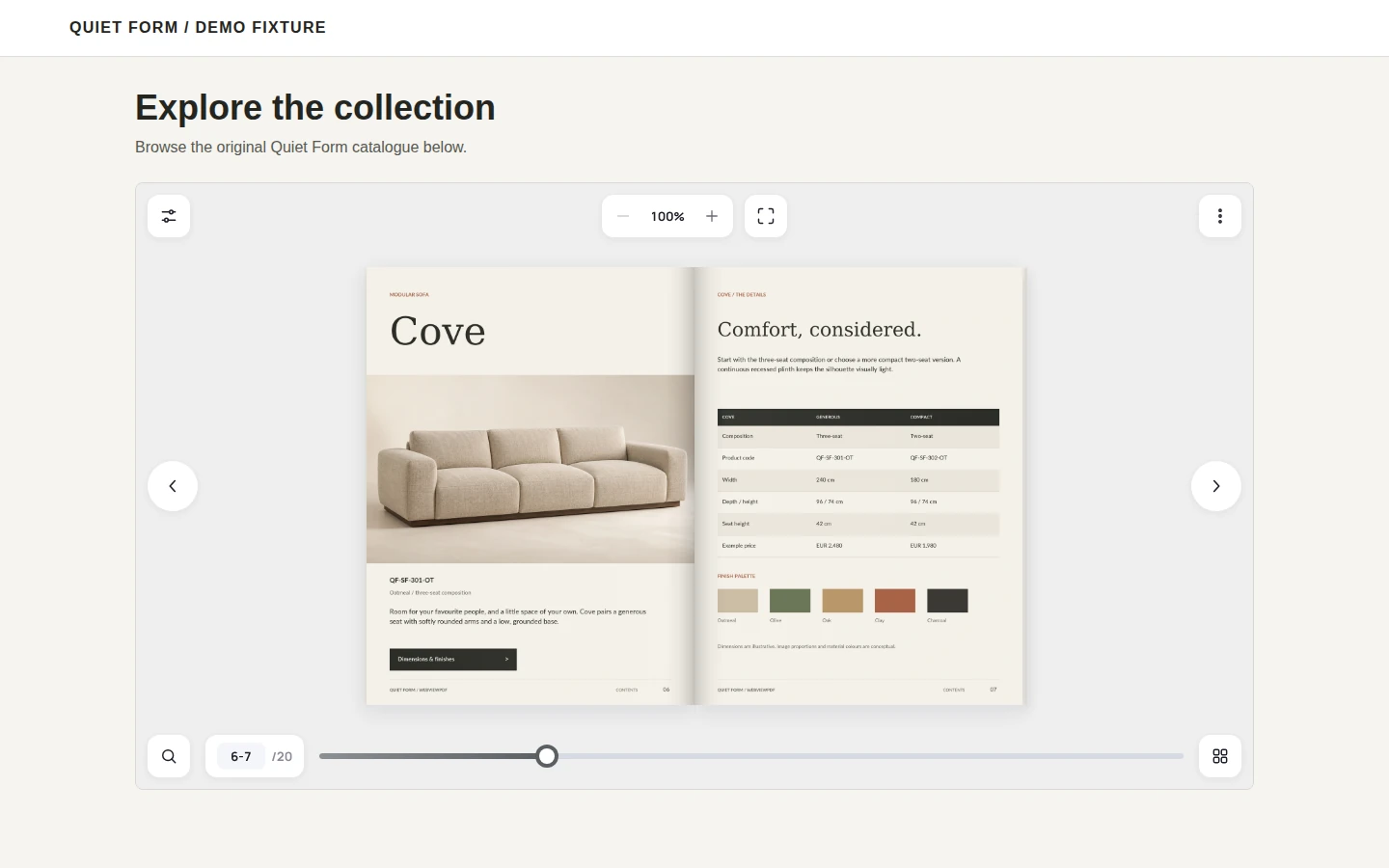
Give the reader a useful content column
Place the embed in your main content area. Avoid squeezing a two-page catalog into a narrow sidebar. In WebViewPDF, enable the single-page behavior for narrow viewers if that suits your layout, then confirm it on the published page. Settings and available width both matter.
On a phone, check that a product table can be enlarged enough to read, that you can move around the enlarged page, and that returning to ordinary browsing is clear. A responsive container preserves the document's layout; it does not rewrite the PDF's typography.
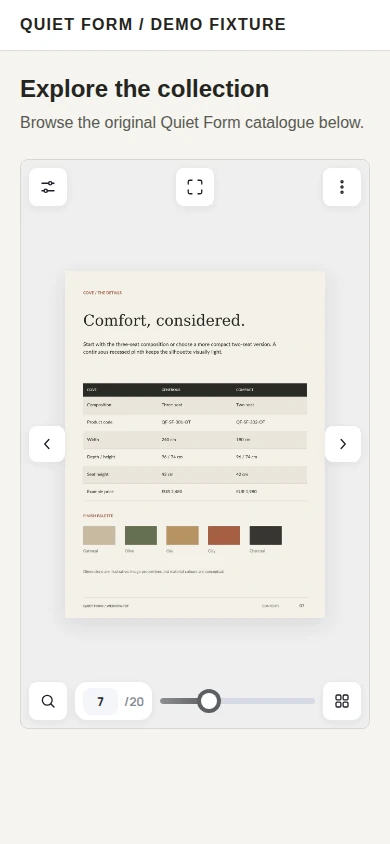
Use this checklist on your own page
- Desktop: open a middle spread, enlarge small text, follow a product link, and return to the catalog.
- Phone: browse a page, zoom into its specifications, leave zoom, and scroll the surrounding website above and below the embed.
- Orientation: rotate the phone and check that the viewer and controls still fit.
- Fullscreen: enter and exit the available reading mode, then confirm that the website scrolls normally again.
- Alternative route: open the separate catalog link and, if offered, download the original PDF.
- Next action: make sure the enquiry or contact link remains easy to find after reading.
Use browser device emulation to catch obvious width problems, then repeat the key actions on a physical iPhone and Android phone where possible. A screenshot at a phone-sized viewport cannot establish touch behavior or browser fullscreen support.
Keep important product and contact information in ordinary HTML around the viewer too. If accessibility is a requirement for your publication, review both the source PDF and the complete reading workflow with appropriate assistive technology.
Update the catalog after embedding it
For a directly hosted PDF, update the file at the linked address or change the link to its replacement. Reopen the visitor-facing URL afterward and check the edition that is actually served.
In WebViewPDF, use Upload new version on the existing flipbook when you want to keep its publication link and embed. To review it first, clear Activate the new version right away, wait for processing, inspect it, and choose Activate this version when it is ready.
Check the table of contents and page links after changes to page order or product placement. They belong to the version being published. Then reopen the embedded catalog in a fresh tab and verify the cover, a changed page and the next action on your website.
Turn your PDFs into interactive catalogs
WebViewPDF turns static PDF files into interactive flipbooks you can embed on any website. Perfect for catalogs, magazines, brochures and presentations — bring your documents to life in a couple of minutes.
Start your 14-day free trialTroubleshooting
| What you see | What to check |
|---|---|
| The code appears as text | Use an HTML or embed-code block rather than a paragraph or code-display block. |
| Only the catalog link remains | Check whether the script was removed, delayed or blocked. Try the iframe option if your CMS allows it. |
| The frame is blank or shows an error | Open its source URL directly. Confirm the publication is available and review browser-console messages for blocking. |
| The PDF downloads instead of displaying | Check the file server's Content-Disposition response and whether that browser supports inline PDF viewing. |
| The reader is too short or tall | Review the iframe height and any fixed-height parent container. Try Script for viewer-driven proportions. |
| Small print is unreadable on a phone | Check zoom, single-page settings and source typography. Make key specifications available in HTML too. |
| An old edition appears | Confirm the intended version is active, the embed targets the right publication, and any relevant cache has refreshed. |
FAQ
Can I embed a PDF without a plugin?
Yes, if your website accepts the HTML you need. A link or a browser-viewer iframe can point to a hosted PDF. WebViewPDF's script and iframe snippets embed its hosted reader. Your CMS permissions determine which markup you can save.
Will setting width to 100% make the PDF mobile-friendly?
It makes the frame follow its container's width. You still need to check the page layout, block height, zoom, navigation and surrounding page scroll. Try the smallest text a buyer needs to read.
Does embedding the PDF make its text searchable?
The embed itself does not add text to a scanned PDF. For WebViewPDF catalog search, prepare a PDF with a usable text layer. Our search guide explains how to check it and when to run OCR.
Does this make the catalog's text appear in Google?
Do not assume that text visible inside a viewer becomes indexable content on the surrounding page. Publish useful HTML descriptions and product pages alongside it. Google lists PDF among its indexable file types, but that is not a promise about text displayed through an embedded flipbook.
Where should I put the enquiry button?
Put a clear next step close to the catalog, such as a contact link below the reader. For a long page, consider another link above it. Choose a destination that makes sense after browsing: a quote form, samples request or collection page.
Read also
- PDF Embed vs PDF.js: A Local Fast 4G Benchmark
- Flipbook vs PDF: 6 Benefits for Your Online Catalog
- Searchable PDF Catalog: Find Any Product by Part Number
- 10 Best Flipbook Software Tools: Player Design Compared
Sources
External documentation checked October 31, 2026. WebViewPDF instructions were checked against the current integration template, embed loader and English interface labels in this project.